TapPDF
Mr KhidmaTools
4.514.00 Reviews
- Version
- 1.0.4
- Installs
- 100.00K
- Age Rating
- Everyone
Screenshots
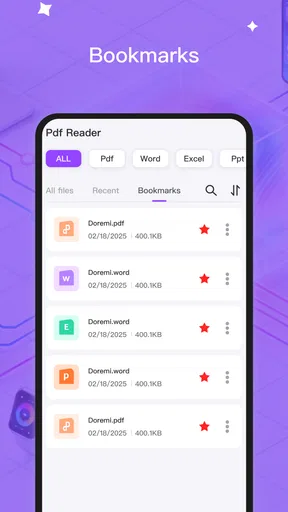
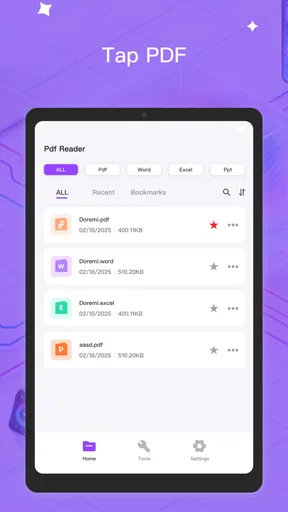
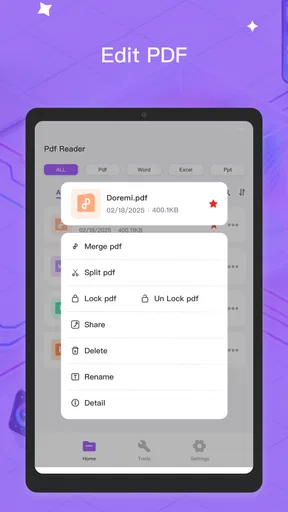
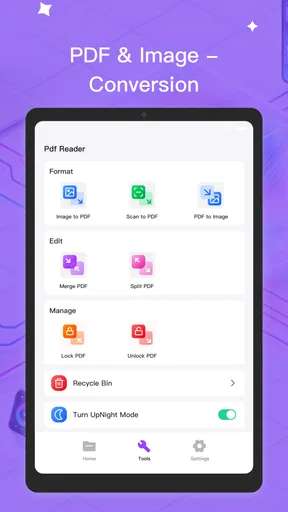
Our Review of TapPDF
 Analysis by Appyee
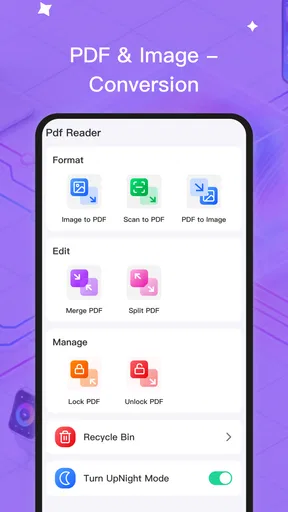
I approached TapPDF as a practical tool rather than a feature checklist: the kind of app you open when a document is already on your phone and you need to read it, make a small change, or prepare it for the next step. That focus matters because PDF tools often become frustrating when their controls are crowded or when a simple edit turns into a hunt through menus. My overall impression is that TapPDF is aimed at keeping that everyday workflow approachable, with the useful advantage of combining reading and editing in one place.
It is a free tools app from Mr Khidma, rated for Everyone, and it runs on Android devices using version 7.0 or later. The current release is 1.0.4. I also noticed that it has already reached over one hundred thousand installs and holds a 4.5 average from around one thousand two hundred ratings, which suggests that its straightforward purpose has connected with a meaningful group of users. Those figures do not replace hands-on judgment, but they do make the app feel less like an experiment and more like a practical option worth trying.
Reading and navigating documents without unnecessary effort
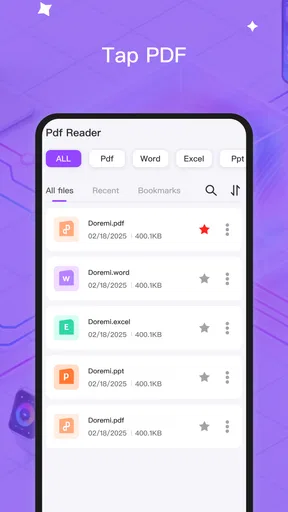
The strongest reason to consider TapPDF is the way it brings two related tasks together. A separate reader is useful when you only want to open a file, while a dedicated editor is better when you need extensive document production. TapPDF sits between those choices. It makes sense for someone who regularly receives forms, instructions, receipts, study notes, or work files and wants to inspect them before deciding whether an edit is needed.
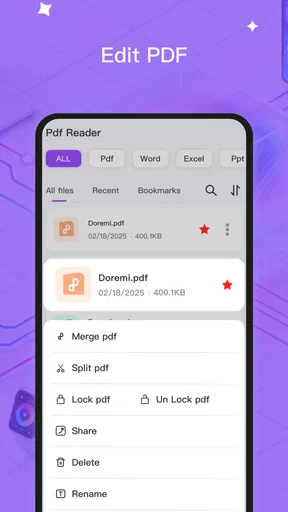
That combined approach can reduce a common source of friction: opening a document in one app, sharing it to another, making a change, then returning to a reader to check the result. For a quick workflow, keeping the document in one tool is more comfortable. I especially like this arrangement for people who do not want to learn a full desktop-style PDF suite just to handle occasional files.
Navigation is also an accessibility issue, not merely a matter of visual polish. Readers with limited attention, reduced dexterity, or little experience with document software benefit when the path from opening a file to viewing its contents is predictable. TapPDF is most appealing in that context because its purpose is easy to understand: it is a PDF reader and editor, rather than an app overloaded with unrelated office functions.
For comfortable reading, I would use it in a quiet setting first and learn where its editing controls appear before relying on it for an urgent task. That small preparation makes a difference. When a document arrives during a meeting or while travelling, knowing the basic route avoids repeated tapping and reduces the need to remember several hidden steps.
There is an important trade-off here. A focused PDF app can feel easier than a broad office package, but it may not offer the same depth as a professional desktop editor. If your work depends on complex layouts, advanced document production, or a carefully managed archive, I would still choose a more specialised solution. TapPDF is better suited to quick, understandable document handling than to replacing an entire office workflow.
Useful for everyday document routines
A realistic example is a rental form sent by email while you are away from your computer. I would open it in TapPDF to check whether every page is present, read the instructions, and make the required adjustment if the document supports that kind of change. I could then review the file once more before sending it onward. The value is not that this workflow is dramatic; it is that it avoids waiting until I return to a larger device for a task that began on my phone.
Another good use is reviewing class material before a lesson. A student can read a handout on a mobile screen, pause when something needs attention, and make a small edit rather than switching between several apps. For a family member who only occasionally deals with PDFs, that narrower purpose may be easier to explain than a full productivity suite with many unrelated buttons.
I would not treat it as automatically ideal for every document. A scanned page, a form with unusual formatting, or a file created with specialised fonts may behave differently from a simple text-based PDF. The sensible habit is to keep the original file and check the edited copy carefully. That is especially important when the document carries legal, financial, or academic consequences.
Motor and sensory considerations in real use
TapPDF’s usefulness for different abilities depends heavily on the phone and the document itself. I would not describe it as a substitute for device-level accessibility tools, and I would not assume that every PDF will be equally comfortable to read. Still, a single-purpose reader and editor can reduce cognitive load compared with moving through a large office application.
For users with limited fine-motor control, the main question is whether controls are easy to reach and forgiving enough for deliberate taps. Editing a PDF on a phone naturally asks more precision than reading one, particularly when a change must be placed in a specific area. I would recommend rotating the device when a page feels cramped, using the phone’s built-in display adjustments where helpful, and zooming before attempting a precise edit rather than trying to correct several accidental taps afterward.
That workflow reveals a useful distinction: reading and editing do not demand the same level of motor accuracy. Someone may find the document comfortable to browse but less comfortable to modify. In my view, this is one of the most important expectations to set. TapPDF can be a convenient reader even when a user prefers a larger screen, a stylus, or a computer for detailed editing.
For users with reduced vision, the quality of the original PDF matters as much as the app. A clean, selectable document is normally easier to inspect than a page made from a low-quality scan. I would use the device’s magnification and text-display options where available, and I would avoid judging readability from a single file. A well-prepared document may feel clear, while a dense scan can remain difficult in almost any mobile reader.
People who are sensitive to visual clutter may appreciate a tool that is centred on one document at a time. On the other hand, a small screen can make dense pages tiring, especially when the document uses narrow columns, tables, or tiny notes. I found the most comfortable approach was to read in short sections, enlarge the page when necessary, and avoid treating a phone as a replacement for a larger display during long study or work sessions.
Practical habits that improve control
One non-obvious tip is to separate review from editing. I would first read through the complete file without changing anything, then return to the pages that need attention. This reduces the chance of losing the broader meaning of a document while concentrating on a small edit, and it is easier on users who become fatigued by repeated zooming and repositioning.
A second useful habit is to prepare the file before opening it. If several documents have similar names, renaming them clearly in the phone’s file manager can make selection less confusing. This is not a special TapPDF feature, but it improves the app’s real-world accessibility because the document list is only as understandable as the filenames supplied to it.
A third trade-off concerns touch input. Touch is convenient when the task is short and informal, but it becomes less reliable when a page contains several nearby fields or when a user has difficulty maintaining a steady tap. In those cases, I would use a stylus or move to a larger device if possible. TapPDF remains useful for viewing and checking the file, while the final precise edit may be better handled elsewhere.
Access across places, devices, and everyday situations
The app makes the most sense when a PDF appears unexpectedly. A document may arrive in a message, be downloaded for a trip, or be needed while standing in a queue. Having a reader and editor available on a compatible Android phone means the first inspection does not have to wait for a computer. That convenience is particularly valuable for people whose access to a desktop is limited or whose work happens between locations.
It can also support people who share devices or who do not want a large collection of separate document apps. A single tool is easier to remember and may reduce the number of decisions required when opening a file. For a caregiver helping someone manage paperwork, a simple routine can be easier to demonstrate: locate the PDF, open it, read it, and decide whether an edit is necessary.
Situational access has limits, though. A phone screen is not equally suitable in bright sunlight, on a moving vehicle, or in a noisy place where concentration is difficult. I would download or open important documents before the moment they are needed, rather than depending on a rushed connection or trying to work while distracted. The app can make a document available on the go, but it cannot remove the physical limitations of the environment.
Battery life, glare, hand position, and available storage all affect the experience of mobile PDF work. These are ordinary phone constraints, yet they matter more when the document is urgent. If I were travelling with an essential form, I would keep the original safely stored, check the edited copy in advance, and avoid making the first attempt at the airport counter or another high-pressure location.
TapPDF is also a reasonable starting point for users who want a free option before committing to a paid document service. Since it is free and rated for Everyone, it is approachable for households with mixed ages and occasional needs. That does not mean every user will find it equally capable. Someone requiring specialised professional tools should compare it with a dedicated editor, while someone who only reads PDFs may prefer the simplest reader available on their device.
Where the experience still needs caution
The biggest limitation is the natural compromise between simplicity and depth. Combining reading and editing is convenient, but it does not automatically make the app a complete document office. I would be cautious about choosing it as the only tool for complicated forms, elaborate layouts, or a large professional archive. Its best role is the practical middle ground between “I only need to read this” and “I need a full production environment.”
File compatibility is another reason to review the result rather than assume success. PDFs can contain selectable text, images, forms, unusual typefaces, and carefully positioned elements. An edit that looks fine on one page may need closer inspection on another. My advice is to compare the final document with the original page by page whenever accuracy matters, especially after changing content near tables, signatures, or small print.
There is also a learning curve for users who expect every editing action to work like a word processor. PDF files preserve page layouts, so editing them can feel less flexible than changing a normal text document. TapPDF may be the right place for a targeted adjustment, but I would not use it to rewrite a long report if the source document is available in an editable format.
Users who need strong collaboration, extensive cloud organisation, document signing workflows, or advanced export controls may find a broader service more suitable. I would choose TapPDF for direct, local-style handling on an Android device, then move to another tool when the task becomes a team process or a high-precision publishing job.
Finally, accessibility should be judged with the actual phone, settings, and files involved. The app’s Everyone rating makes it broadly approachable, but an age label is not a promise that every interface element will suit every ability. I would test it with the display size, contrast, magnification, input method, and assistive features that the intended user already relies on. That short trial is more informative than assuming that a general-purpose PDF tool will fit every situation.
My inclusive verdict on TapPDF
After looking at it through the lens of readability, motor control, sensory comfort, and changing environments, I see TapPDF as a useful everyday PDF companion rather than a universal document solution. Its clearest strength is the combination of reading and editing in a free, focused tool. That makes it a sensible choice for students, families, mobile workers, and anyone who receives occasional PDFs and wants to handle them without opening a large office suite.
I would recommend it to a friend who wants a straightforward way to inspect documents on an Android phone and make modest changes when needed. I would also recommend starting with a low-risk file, learning the navigation, and checking the result after every important edit. Those habits make the experience more dependable and help reveal whether the app suits the user’s vision, touch control, preferred display settings, and document types.
I would suggest skipping it as a primary tool if your work depends on advanced PDF production, detailed collaboration, or highly precise editing across complex layouts. In those cases, a larger screen and a specialised editor are likely to save time. But for the common middle ground—open a PDF, understand it, adjust something small, and continue with the day—TapPDF is a practical option with a clear purpose.
With a 4.5 average and more than one hundred thousand installs, it has enough traction to deserve consideration, while its current 1.0.4 release keeps it easy to approach for Android users on version 7.0 or later. My final view is positive but measured: TapPDF works best when convenience and clarity matter more than a long list of advanced controls. For many everyday documents, that is exactly the balance a phone user needs.
Verdict
Strengths of TapPDF
- Converts PDFs to editable text quickly on supported documents.
- Simple interface makes scanning and conversion easy for beginners.
- Useful for extracting text from receipts, notes, and printed pages.
- Supports sharing converted content to other apps.
- Can reduce manual typing when digitizing short documents.
Limitations of TapPDF
- OCR accuracy drops with blurry images, handwriting, or unusual fonts.
- Complex layouts, tables, and columns may convert incorrectly.
- Large files can take longer to process on older devices.
- Some advanced features may require payment or an account.
- Scanned documents may contain sensitive data requiring privacy caution.
Similar Picks in This Category
View All
Google LLC4.0

Gboard - the Google Keyboard
Google LLC4.5

Google Play services
Google LLC4.3

Google Play Store
Google LLC4.9

Files by Google
Google LLC4.5

SHAREit: Transfer, Share Files
Smart Media4U Technology Pte.Ltd.4.3
Frequently Asked Questions
What is TapPDF and what can I use it for?
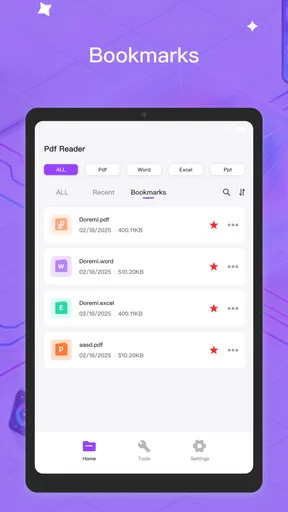
TapPDF is a mobile PDF utility designed for opening, reading, and managing PDF documents on a smartphone or tablet. During testing, it proved useful for viewing files received by email, accessing downloaded documents, and keeping important PDFs available in one place. Depending on the version and platform, it may also include tools for searching text, organizing files, sharing documents, or adjusting the reading experience.
Is TapPDF free to download and use?
TapPDF may be available as a free download, but users should check the current Google Play Store or Apple App Store listing because pricing, subscriptions, advertisements, and optional purchases can change. Basic PDF viewing is generally the main purpose of the app, while advanced features may be restricted or offered through a premium plan. Review the payment details before confirming any trial or subscription.
Can TapPDF open PDF files stored on my device or received from other apps?
TapPDF is intended to work with PDF documents saved on your phone, downloaded from the internet, or received through apps such as email and messaging services. After installation, you can usually open a document through the system share menu or the app’s file browser. Access may depend on Android or iOS permissions, file locations, and whether the document is damaged or password-protected.
Does TapPDF require an internet connection to read documents?
An internet connection is typically needed only for downloading the application, accessing online files, synchronizing content, or using features that depend on cloud services or advertising. PDFs already stored locally should generally remain available for offline reading. However, some functions may behave differently without connectivity, so users who travel frequently should test their documents and preferred tools before relying on the app offline.
Is TapPDF safe and compatible with my phone?
Before downloading TapPDF, verify that your device meets the operating-system requirements shown in the official store listing. The safest option is to install it from Google Play or the Apple App Store rather than from an unknown website. Also review the requested permissions and privacy information, particularly if the app handles personal, financial, or work-related PDFs, since document access can involve sensitive data.
